Unit 3: Computer Software and Operating System
This note is made for NEB Grade 11 Computer Science. This post contains the complete note of Unit 3 in simple and easy understanding way, based on the syllabus of CDC, along with sample board exam questions based on the official 2077 Specification Grid.
Table of Content
- 3.1 Concept of Software
- 3.1.1 Definition of Software
- 3.1.2 Categories of Software
- 3.2 Concept of Operating System
- 3.2.1 Introduction to Operating System
- 3.2.2 Role of Operating System
- 3.2.3 Functions of an Operating System
- 3.2.4 Operating System Terminology
- 3.3 Windows Operating System
- 3.4 Open Source and Mobile Operating System
- Sample Board Exam Questions
3.1 Concept of Software
3.1.1 Definition of Software
A computer without software is just a collection of electronic parts with no purpose. Hardware provides the physical ability to compute, while software provides the instructions that direct that ability toward a useful task, whether that is writing a document, browsing the internet, or running a game.
3.1.2 Categories of Software: System, Utility, Application, Web Based, Mobile Apps
System Software
System software manages and controls the computer’s hardware, and provides a platform on which other software can run. It runs in the background and is not usually interacted with directly by an average user. The operating system itself is the most common example.
Utility Software
Utility software performs maintenance tasks that keep a computer running smoothly, such as scanning for viruses, managing disk space, or backing up files. Examples include antivirus programs, disk cleanup tools, and file compression tools.
Application Software
Application software is designed to help a user perform specific, everyday tasks, such as writing a document, editing a photo, or browsing the web. Examples include Microsoft Word, Adobe Photoshop, and Google Chrome.
Web Based Software
Web based software runs inside a web browser rather than being installed directly on a device, and typically requires an internet connection to function. Examples include Google Docs, Gmail, and online banking portals.
Mobile Apps
Mobile apps are software applications designed specifically to run on mobile devices such as smartphones and tablets, usually downloaded through an app store like Google Play or the Apple App Store. Examples include WhatsApp, Instagram, and mobile banking apps.
| Category | Purpose | Example |
|---|---|---|
| System Software | Manages hardware and provides a platform for other software | Windows, Linux |
| Utility Software | Performs maintenance and support tasks | Antivirus, Disk Cleanup |
| Application Software | Helps users complete specific tasks | MS Word, Photoshop |
| Web Based Software | Runs through a browser, usually needs internet | Google Docs, Gmail |
| Mobile Apps | Runs on smartphones and tablets | WhatsApp, Instagram |
3.2 Concept of Operating System
3.2.1 Introduction to Operating System
Every general-purpose computer, from a desktop to a smartphone, needs an operating system to function, since it is the operating system that allows a user to interact with the hardware without needing to understand its low-level technical details. Common examples include Windows, macOS, Linux, Android, and iOS.
3.2.2 Role of Operating System
- Acts as an interface between the user and the computer hardware
- Manages and allocates hardware resources, such as memory, processor time, and storage, among different running programs
- Provides a consistent environment so that application software can run without needing to manage hardware directly
- Enforces security by controlling access to files, devices, and system settings
3.2.3 Functions of an Operating System
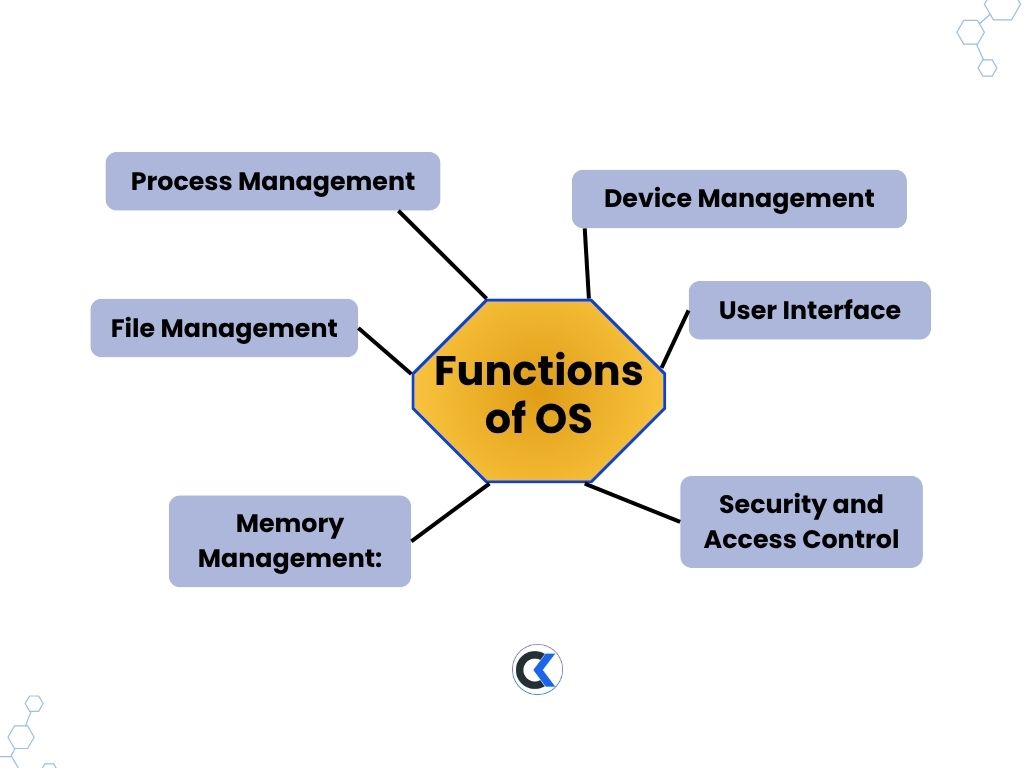
- Process Management: keeps track of every running program (process), allocating processor time to each and switching between them as needed
- Memory Management: allocates and frees memory (RAM) for running programs, ensuring one program does not interfere with another’s memory space
- File Management: organizes, stores, retrieves, and protects files and folders on storage devices
- Device Management: controls communication between the computer and connected hardware devices, such as printers, keyboards, and storage drives, often using device drivers
- Security and Access Control: protects the system from unauthorized access through user accounts, passwords, and permission settings
- User Interface: provides a way for users to interact with the computer, either through a command line or a graphical interface
3.2.4 Operating System Terminology: Multiprogramming, Multitasking, Multiprocessing, Distributed
Multiprogramming
Multiprogramming allows multiple programs to reside in a computer’s memory at the same time, with the CPU switching between them so that it is never left idle while one program waits for an input/output operation to complete. This improves overall efficiency, even though only one program is actually being executed by the CPU at any single instant.
Multitasking
Multitasking allows a user to run and interact with multiple programs seemingly at the same time, such as browsing the web while listening to music. The operating system rapidly switches the CPU’s attention between tasks, and this switching happens so quickly that it appears to the user as if everything is happening simultaneously.
Multiprocessing
Multiprocessing refers to a system that uses two or more CPUs (or CPU cores) within a single computer, allowing multiple processes to genuinely execute at the exact same time, rather than just switching quickly between them. This generally results in better performance than a single-processor system running multiple tasks.
Distributed Operating System
A distributed operating system manages a group of independent, networked computers and makes them appear to the user as a single, unified system, sharing resources and processing tasks across multiple physical machines rather than relying on just one.
| Term | Core Idea |
|---|---|
| Multiprogramming | Multiple programs held in memory; CPU switches to avoid idle time |
| Multitasking | User runs multiple programs that appear to work simultaneously |
| Multiprocessing | Multiple CPUs/cores genuinely execute tasks at the same time |
| Distributed OS | Multiple networked computers function as one unified system |
3.3 Windows Operating System
3.3.1 Introduction to GUI Based Operating System and Its Features
Windows is one of the most widely used GUI based operating systems, developed by Microsoft. Its main features include a desktop environment, a taskbar for switching between open programs, a Start menu for launching applications, and support for running multiple windows at once.
3.3.2 Working in Desktop Application and Window Environment
The desktop is the main screen a user sees after logging in, acting as a workspace where shortcuts, files, and folders can be placed for quick access. Each running application opens inside its own window, which can be resized, moved, minimized, maximized, or closed using the controls found at the top of the window.
- Minimize: hides the window from view without closing the program, sending it to the taskbar
- Maximize: expands the window to fill the entire screen
- Restore: returns a maximized window to its previous, smaller size
- Close: ends the program and removes the window entirely
3.3.3 Manage Files and Folders with File Explorer
File Explorer is the built-in file management tool in Windows, used to browse, organize, copy, move, rename, and delete files and folders stored on the computer.
- Creating a folder: right-click an empty area, select New, then Folder
- Renaming: right-click a file or folder and select Rename, or select it and press F2
- Copying and moving: use Copy/Cut and Paste, or drag and drop the item to a new location
- Deleting: select the item and press Delete, which sends it to the Recycle Bin rather than removing it permanently right away
- Searching: use the search bar within File Explorer to quickly locate a file by name
3.3.4 Customize the Start Screen and Desktop
Windows allows a fair amount of personalization to make the working environment more comfortable for individual users.
- Changing the desktop background/wallpaper through Settings > Personalization
- Pinning frequently used apps to the Start menu or taskbar for quick access
- Rearranging or resizing tiles on the Start menu
- Changing the overall theme, including colors and sound schemes
- Adjusting screen resolution and display scaling
3.3.5 Installing and Removing Devices
When a new hardware device, such as a printer or external drive, is connected to a Windows computer, the operating system usually detects it automatically and installs the necessary device driver (software that allows the OS to communicate with that specific hardware).
- Installing a device: connect the device, and Windows will attempt to install it automatically; if not, drivers can be installed manually through Device Manager or the manufacturer’s website
- Removing a device: for external devices, safely eject them through the “Safely Remove Hardware” option before physically disconnecting, to avoid data loss or corruption
- Device Manager: a Windows tool that lists all connected hardware and allows drivers to be updated, disabled, or uninstalled
3.3.6 Manage Passwords and Privacy Levels
Windows provides several tools to help protect a user’s account and personal data.
- User accounts and passwords: each user can have a separate account, protected by a password or PIN, so that personal files and settings stay private from other users on the same computer
- Windows Hello: allows sign-in using biometric methods, such as fingerprint or facial recognition, on supported hardware
- Privacy settings: found under Settings > Privacy, allowing a user to control which apps can access the camera, microphone, location, and personal files
- Account types: Windows distinguishes between Administrator accounts (which can install software and change system settings) and Standard accounts (which have more limited permissions)
3.3.7 Use of Control Panel, System Tools, and Accessories
Control Panel is a classic Windows utility that provides access to system settings, such as adding/removing programs, managing user accounts, adjusting display settings, and configuring network connections.
System Tools include utilities such as Disk Cleanup (removes unnecessary files to free up storage space), Disk Defragmenter (reorganizes fragmented data for faster access), and Task Manager (shows running programs and processes, and lets a user close unresponsive ones).
Accessories are small built-in programs bundled with Windows for everyday tasks, such as Notepad (basic text editing), Paint (basic image editing), and Calculator.
3.4 Open Source and Mobile Operating System
3.4.1 Concept of Open Source Operating System
This is different from proprietary (closed source) operating systems like Windows or macOS, where the source code is kept private by the company that develops it, and users are only permitted to use the finished software as provided.
3.4.2 Introduction to Linux and UNIX
UNIX is one of the earliest operating systems, originally developed in the 1970s, known for its stability, multi-user support, and strong security model. Many later operating systems were influenced by, or directly built on, UNIX’s design principles.
Linux is an open source operating system inspired by UNIX, originally created by Linus Torvalds in 1991. Unlike UNIX, Linux is free to use, modify, and distribute, which has led to it becoming one of the most widely used operating systems in the world, especially for servers and embedded systems.
3.4.3 Linux Distributions
A Linux distribution (often shortened to “distro”) is a complete operating system built around the Linux kernel, packaged together with additional software, tools, and a desktop environment, to make it ready for everyday use.
- Ubuntu: one of the most beginner-friendly Linux distributions, widely used by both new users and developers
- Fedora: known for including newer software and technologies relatively early
- Debian: known for its stability, and forms the base that Ubuntu itself is built on
- Red Hat Enterprise Linux (RHEL): a commercially supported distribution widely used in business and enterprise environments
3.4.4 Concept of Mobile Operating System
Mobile operating systems are generally optimized for touch input, smaller screens, limited battery life, and constant connectivity, which sets them apart from operating systems designed for desktop computers.
3.4.5 Types of Mobile Operating System
| Mobile OS | Developer | Notes |
|---|---|---|
| Android | Open source (based on Linux), used by many different phone manufacturers | |
| iOS | Apple | Proprietary, used exclusively on Apple’s iPhone devices |
| HarmonyOS | Huawei | Developed as an alternative after restricted access to Android services |
| KaiOS | KaiOS Technologies | Lightweight OS used mainly on basic/feature phones with limited hardware |
Quick Revision: Key Points
- Software categories: System, Utility, Application, Web Based, Mobile Apps
- OS functions: process, memory, file, device, security management, and user interface
- Multiprogramming = no CPU idle time; Multitasking = user runs many programs at once; Multiprocessing = multiple CPUs work simultaneously; Distributed OS = many networked computers act as one
- Windows is a GUI based OS developed by Microsoft; File Explorer manages files and folders
- Device Manager handles hardware/driver installation and removal
- Open source OS: source code is public and free to modify (e.g. Linux); proprietary OS keeps source code private (e.g. Windows, macOS)
- Linux is inspired by UNIX; common distributions include Ubuntu, Fedora, Debian, and RHEL
- Common mobile operating systems: Android (Google), iOS (Apple), HarmonyOS (Huawei), KaiOS
Sample Board Exam Questions
Based on the official NEB Computer Science Specification Grid 2077, Unit 3 (Computer Software and Operating System) carries 8 marks out of the theory paper, drawn mainly from the Remembering level. The typical pattern for this weight is 3 Multiple Choice Questions (1 mark each) and 1 Short Answer Question (5 marks). Sample questions in that exact pattern are given below.
Group A: Multiple Choice Questions 1 × 3 = 3
- Which of the following is an example of system software?
- a) Microsoft Word
- b) Windows Operating System
- c) Adobe Photoshop
- d) Google Chrome
- Which operating system terminology refers to a system using two or more CPUs to execute multiple processes at the exact same time?
- a) Multitasking
- b) Multiprogramming
- c) Multiprocessing
- d) Time sharing
- Which of the following is an open source operating system?
- a) Windows
- b) macOS
- c) Linux
- d) iOS
Group B: Short Answer Question 5 marks
Define an operating system. Explain any four functions of an operating system with suitable examples.
Additional practice questions from this unit:
- Differentiate between system software and application software with one example of each.
- Differentiate between multitasking and multiprocessing.
- Compare Windows and Linux as operating systems, considering cost, source code availability, and typical use cases.

Published August 2026. Last verified and updated: September 2026.